How to use KeyStats to track daily keyboard and mouse input on macOS: Installation and configuration guide

30Second reading
no comments

🧩 KeyStats:macOS 轻量级键鼠统计工具

KeyStats 是一款专为 macOS 设计的原生菜单栏应用,旨在帮助用户量化每日的输入习惯。它通过在顶部状态栏实时显示键盘敲击次数与鼠标点击数,让用户直观感知工作强度。所有统计逻辑均在本地运行,不上传云端,在提供实用数据的同时确保了极高的隐私安全性。
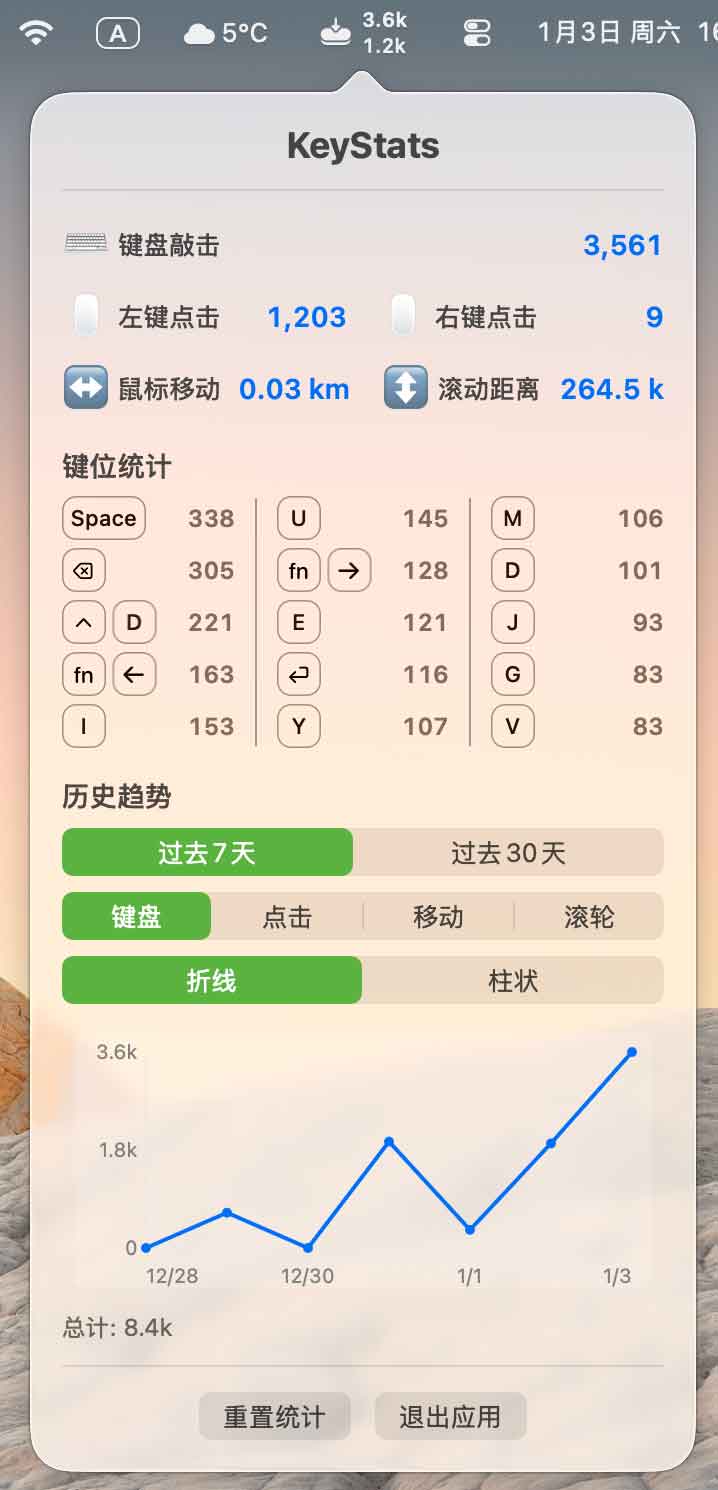
如何使用 KeyStats 统计 macOS 每日键鼠输入量:安装与配置指南

🚀 核心功能

  • 全方位统计:精确记录每日键盘按键次数、鼠标左右键点击量、鼠标移动总距离以及页面滚动像素。
  • 即时状态可见:无需频繁切换窗口,直接在菜单栏查看实时数据。
  • 深度数据面板:点击图标可展开详细面板,查看各项指标的完整明细。
  • 自动化管理:支持每日零点自动清空统计,并具备本地持久化存储,确保重启系统后数据不丢失。

🧠 技术实现与要求

KeyStats 采用 Swift 5.0 开发,基于 AppKit 和 CoreGraphics 框架构建。其核心机制是通过 CGEvent.tapCreate 捕捉全局键鼠事件,并利用 UserDefaults 将数据存储在本地。应用运行在纯菜单栏模式(LSUIElement = true),不占用 Dock 栏空间。

系统要求: macOS 13 Ventura 及以上版本。

🔐 隐私保护与权限配置

隐私承诺: KeyStats 仅记录行为频次,不会 记录具体按键内容、输入文字或点击坐标,所有数据仅保存在本地设备中。

由于涉及全局事件监听,首次启动需手动开启“辅助功能”权限:

  1. 启动应用,在弹出的权限提示框中点击“打开系统设置”
  2. 进入“隐私与安全性” $rightarrow$ “辅助功能”
  3. 在列表中找到 KeyStats 并 勾选开启
  4. 完成授权后,应用将自动开始记录数据。

📊 快速上手指南

菜单栏数据解读:

1,236 (键盘敲击总数) 487 (鼠标点击总数)
  • 数值格式:为了保持简洁,大数值会自动格式化(例如 1.2K or 1.0M)。
  • 详细查看:点击菜单栏图标即可呼出完整统计面板。
  • 常规操作 :在面板中可执行 手动重置数据 or 退出应用程序

📦 获取方式

开源地址: GitHub 仓库

快速下载: Quark Drive

End of text
0
Administrator
Copyright Notice:This article is original content from this website. Administrator 于2026-01-05发表,共计817字。
Reprinting Notice:Unless otherwise stated, all original content on this site is published under the Creative Commons Attribution 4.0 (CC BY 4.0) license. Please indicate the source and retain the original link when reprinting. Some content on this site is compiled from publicly available information and may have been generated or optimized with the assistance of AI technology. It is for reference only and does not constitute any professional advice. Readers should make their own judgments and verifications. This site assumes no responsibility for the availability, security, or legality of third-party resources.
Comments (No comments)
验证码